
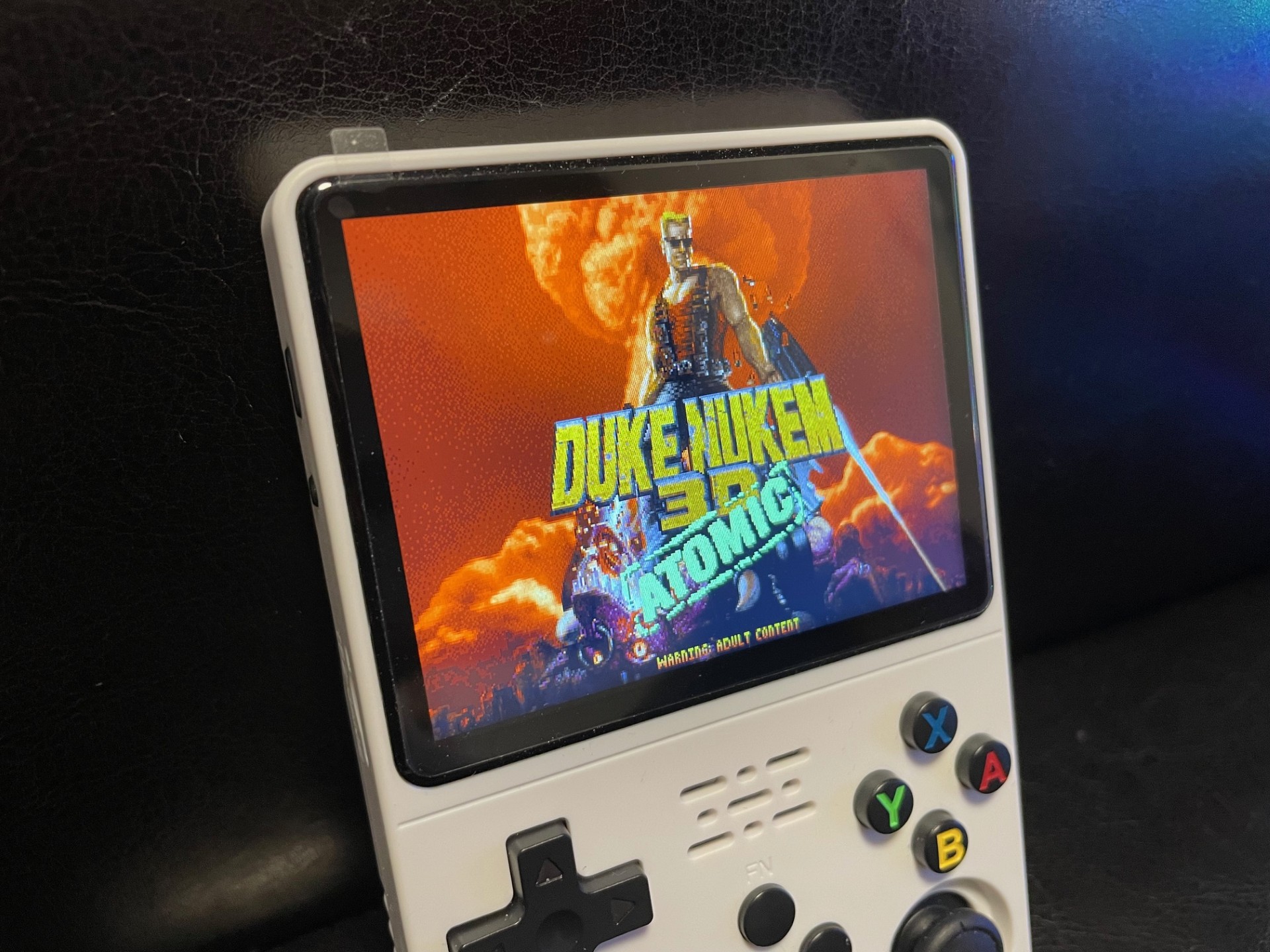
Portmaster is a nifty tool to get a range of classic games to play on your R36S. In this post I describe how I got Duke Nukem 3D to run on my device, without connecting it to the Internet. The below steps is mostly a note-to-self list, but might be useful for someone experiencing the same issues as I did when trying to get Portmaster to work.
- To run Portmaster, choose “Options” from the list of systems on your device, press “TOOLS” -> “PORTMASTER” -> PORTMASTER. Here, my version of Portmaster wanted to connect to a network. Since I have not enabled WIFI on my R36S, I used the following workaround instead:
- Download PortMaster.zip from here: https://github.com/portsMaster/PortMaster-GUI/releases
- Insert the SD-card from your R36S in your computer. Locate the “TOOLS”-folder on your EASYROMS partition. Remove or rename your “Portmaster” folder and unzip the content you downloaded in the previous step to a new Portmaster folder here. This version does not require you to connect to the internet.
- Now, I wanted to install Duke Nukem 3D on my device. To do so, I downloaded the required files: https://portmaster.games/detail.html?name=duke.nukem.3d and extracted them to /tools/PortMaster/autoinstall/ on the SD-card. Portmaster will automatically install the content from this folder.
- Then, I put the SD-card back in my R36S, and navigated to TOOLS->PORTMASTER again and started the application. This installed Duke Nukem 3D on my device. However, some files from the original game need to be added:
- Insert your SD-card in your computer again. From the Atomic edition of the game, copy duke3d.grp and duke.rts to the the ports/rednukem/gamedata folder on your SD-card.
- Now, when you insert the SD-card in your R36S again, you should have a new type of system in your menu, named “PORTS”. Here, you can find Duke Nukem 3D, and start the game!
