
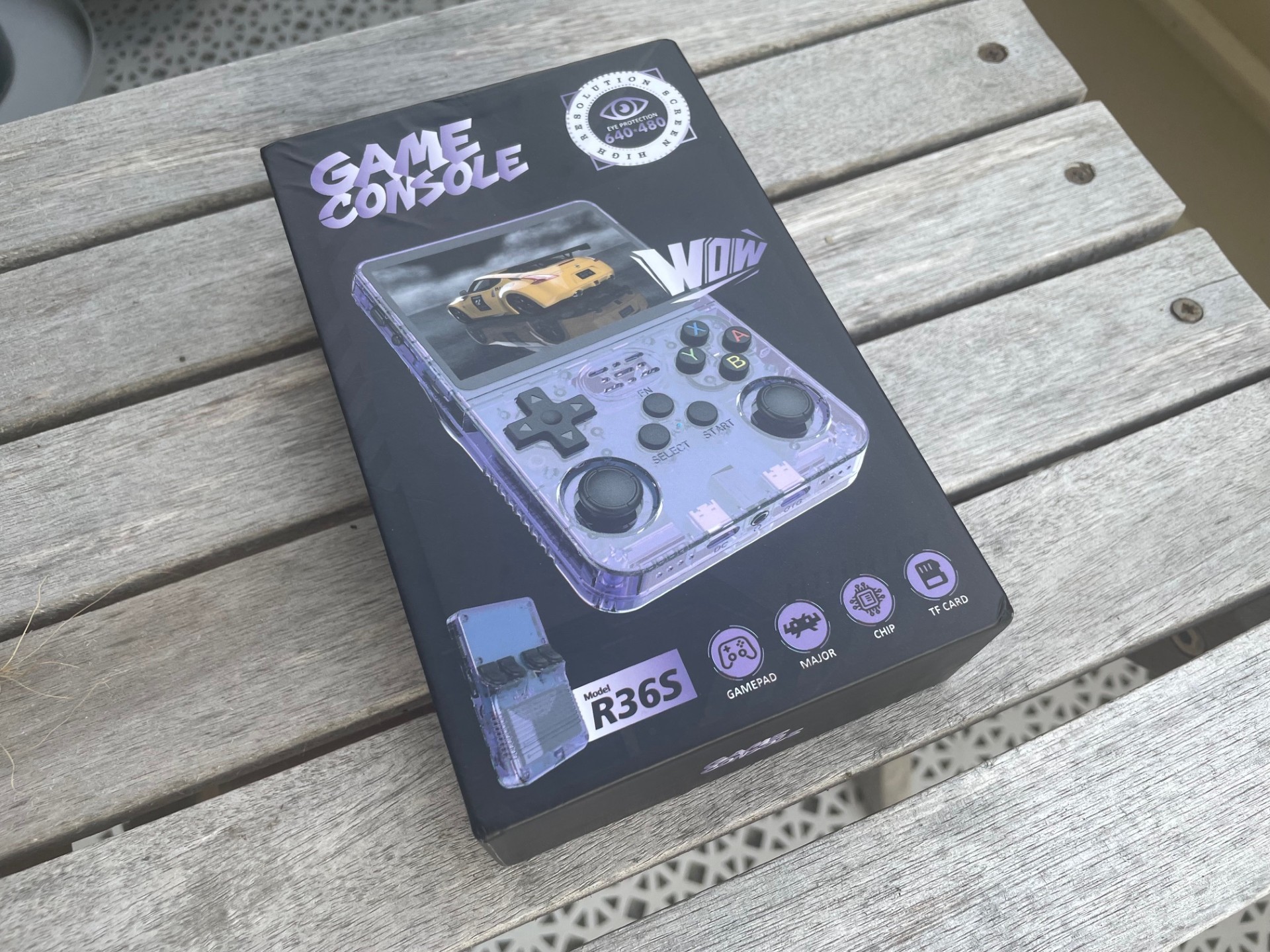
I recently bought a R36S handheld emulation device from AliExpress. There exist a lot of different information about these neat little handhelds online, and there are many users on Facebook / Reddit / various forums that have questions about specific setups. The R36S often come with a memory card with the ArkOS operating system, and many preinstalled games. There are a few problems with this card though:
- The card is of bad quality and will die sooner or later.
- ArkOS on the card is often outdated, and updating the OS may be challenging.
What I wanted to do was to a) install ArkOS on a fresh memory card of good quality and b) transfer the roms from the preinstalled card to the new card. This is how I did this:
Install fresh ArkOS and keep stock roms on R36S
- I bought a 128 gb SAMSUNG EVO PLUS MicroSD card from Amazon. This is a recommended card of good quality, highly compatible with the R36S.
- I downloaded the latest build of ArkOS here: https://github.com/AeolusUX/ArkOS-R3XS/releases and extracted the img-file to a folder on my PC.
- I used the Rufus USB tool to format the Samsung MicroSD card and install ArkOS on it. https://rufus.ie/ This will create two partitions on the card.
- I bought a USB MicroSD memory card reader (my old reader was rather slow, if you already have an fairly new adapter you can use that) and moved all content from the preinstalled card’s “Easyroms” partition to a folder on my PC.
- Then, I put the Samsung MicroSD card in my R36S and waited for it to finalize the initial setup.
- Finally, I put the Samsung MicroSD card in my card reader, and transferred the content from the folder on my PC to the Easyroms partition on the Samsung card.
- Done! Now I have a fresh ArkOS install and a ton of games to play! I also added a few of my own roms to the card, such as C64, Amiga, MSX2 and Vectrex games, as these were not included on the preinstalled card.
There are numerous other setups and ways to update ArkOS, including dual MicroSD-cards, manually adding your own games, and/or using Wifi dongles for updates, but I found this method being the most straight-forward way to quickly create a robust system ready for gaming.
Some initial settings to improve the experience on R36S
- Press start, go to UI settings -> Visible systems and choose the systems you want to be visible in the menu. First time I do this, I press “all”. Then, I deselect stuff like American Laser Games, Wolfenstein, EasyRPG and Pico-8.
- Now. “Options” should show up in your menu. Choose it, go to Devicetype, and choose “R35S” or “R36S”.
- Some useful button combinations: Y while a game is marked in menu = add to favorites. FN + START (twice) = quit game. FN + R1 = save game state. FN + L1 = load game state.
- However, the FN button in the Retroarch emulator is also tied to “fast forward”, which is a bit annoying. To adjust, choose “Retroarch” from the menu. Choose Settings->Input->HotKeys. Choose “Fast Forward Hold” and Press Y to remove this function (I don’t use it). Remember to save your settings by going to “Configuration File” and “Save Configuration File” in the Retroarch menu. Repeat for Retroarch32.
- Turn off the verbal battery warning: this seems a bit bugged. In options, audio, change “verbal battery voice” from Male to Female and switch it Off -> on and back to Off.
- PSP analog stick reversed by default: start a PSP game, press the right analog button (press the right analog stick) to bring up a menu. Go to Settings -> Controls -> Control Mapping -> Standard PSP Controls, and go down to analog controls, and remap the four directions.
- See also, my Portmaster post.
My son broke screen on his R36S. I got a new panel and installed it. Got a boot logo and then screen goes mostly blank…dark strip down middle, lighter strips on either side. I read about needing the correct DTB, so I downloaded the v0-V4(60Hz) dtb files and planned to stick them in the boot folder, but there is no dtb file there. In fact, the boot partition seems nearly empty. There are just 2 fontxx.sft files, a bootlogo file, bat folder and a “magic.bin” file. So I tried downloading the lates ARKOS, following the instructions above, and installed on a new PNY microSD card. The R36S will not boot with that card. I put the stock microSD card back in, and it’s unchanged…bootlogo works, then the same dark stripe in the middle of the screen with two lighter patches on the left and right sides.
Howdy, I just purchased one of these myself, and I have the same exact issue and can provide a screenshot if needed. All their is, is 2 fontxx.sft files, a bootlogo file, bat folder and a “magic.bin” file. Could anyone provide some assistance? I purchased mine off of Temu recently, around March 20th and it just arrived.
Hello so I flashed a new SD card with ArkOS_R35S-R36S_v2.0_11072025_MultiPanel.img my unit is a panel 4 and everything worked well but I can’t save a game in Nintendo DS new super mario bros
Hey
How do I access the SD Card content via Windows 11? Is this even possible? I need to get the data / copy files but I can’t see it. I guess due to EXT4. Do I need to use a Linux Computer or is there chance to this on a Windows machine?
Cheers
You should be able to access the content of the card via Windows 11. Perhaps try a different card reader?
OK – I am going to try an other card reader then. Thank you and greetings